
Installation & Configuration - RazorPay Payment
Buy NowThe Razorpay Payment nopCommerce plugin allows store owners to accept secure online payments directly on their nopCommerce store.
By default, nopCommerce provides basic payment methods, but Razorpay enables:
- Cards (Credit/Debit)
- UPI
- Net Banking
- Wallets
This improves checkout experience and increases successful transactions.
Ensure payment method is enabled in nopCommerce.
Installation and Configuration
All our plugins require you to first install the NopAdvance.Core plugin as a prerequisite for its operation. Please refer to the instructions on how to install a plugin while proceeding with the setup.
Once the plugin has been installed, navigate to: Nopadvance → Plugin → Razorpay → Configure in your nopCommerce admin panel, as shown in the image below.
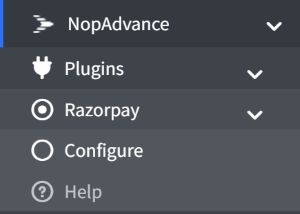
Plugin Configuration
Selecting the Configure menu item will bring up the configuration page, as shown in the image below.
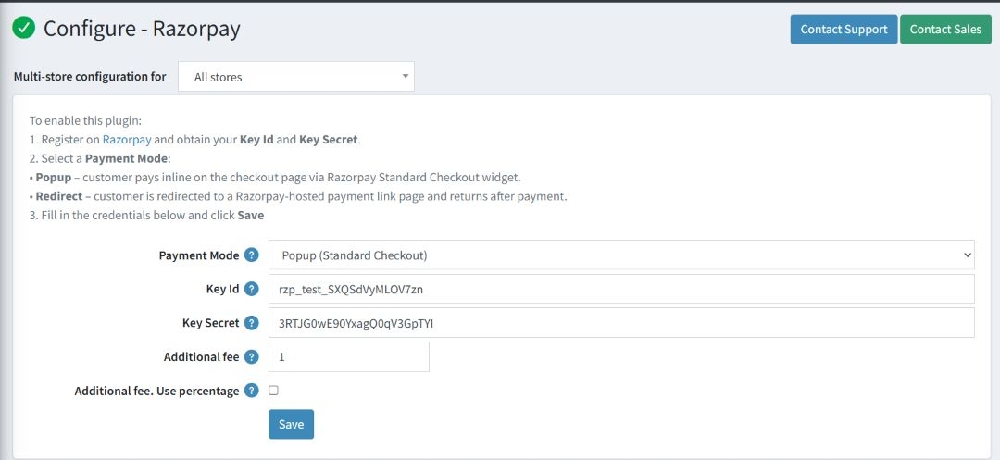
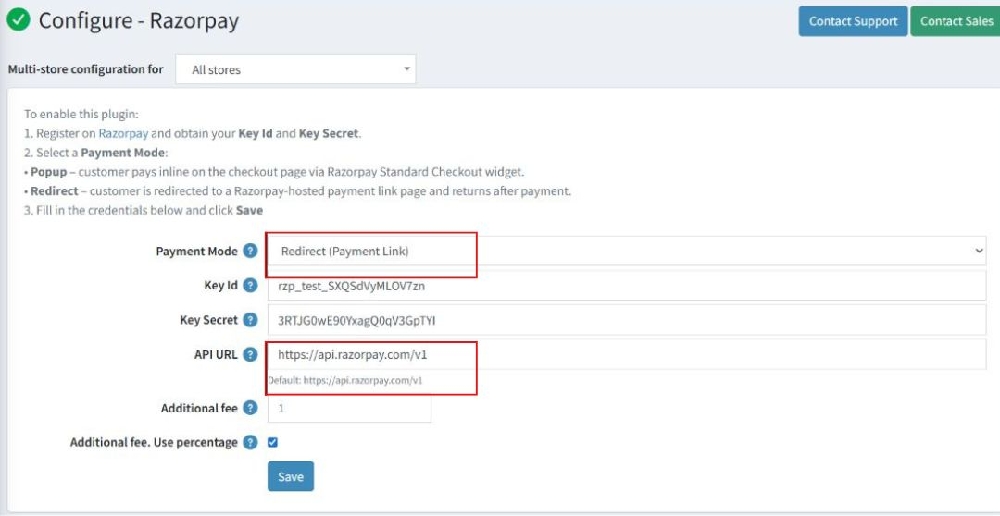
Please review the plugin installation guide before proceeding with the Razorpay configuration. We recommend configuring the plugin with valid API credentials before enabling it as an active payment method in your store.
Fields Description
- Payment Mode
- Redirect → User goes to Razorpay page
- Popup → Payment opens in popup
- Key ID: Enter Razorpay Key ID
- Key Secret: Enter Razorpay Key Secret
- API URL→ Default: https://api.razorpay.com/v1
- Additional Fee: Extra charge applied to order
- Use Percentage: Enable to apply fee in %
Features
- Secure payment gateway integration
- Supports multiple payment options
- Works with all standard product types
- Easy configuration (no coding required)
- Compatible with multi-store setup
Supported Product Types
✔ Simple products
✔ Downloadable products
✔ Gift cards (with validation)
✔ Rental products
Recurring products not supported by default
Additional Fee Behavior
- Fee can be fixed or percentage
- Automatically added in checkout total
- Visible in order summary
Order Processing
After payment:
- Order is created in Admin
- Payment status updated
- Transaction ID stored
- Customer receives confirmation