Installation and configuration - Product Similarity Engine
Buy NowThis project is a custom plugin developed for nopCommerce, an open-source eCommerce platform built on ASP.NET Core. The plugin extends the default functionality of nopCommerce by introducing a Product Similarity Engine Extension that automatically identifies and suggests similar products based on configurable rules such as category, product tags, attributes, manufacturer, and price.
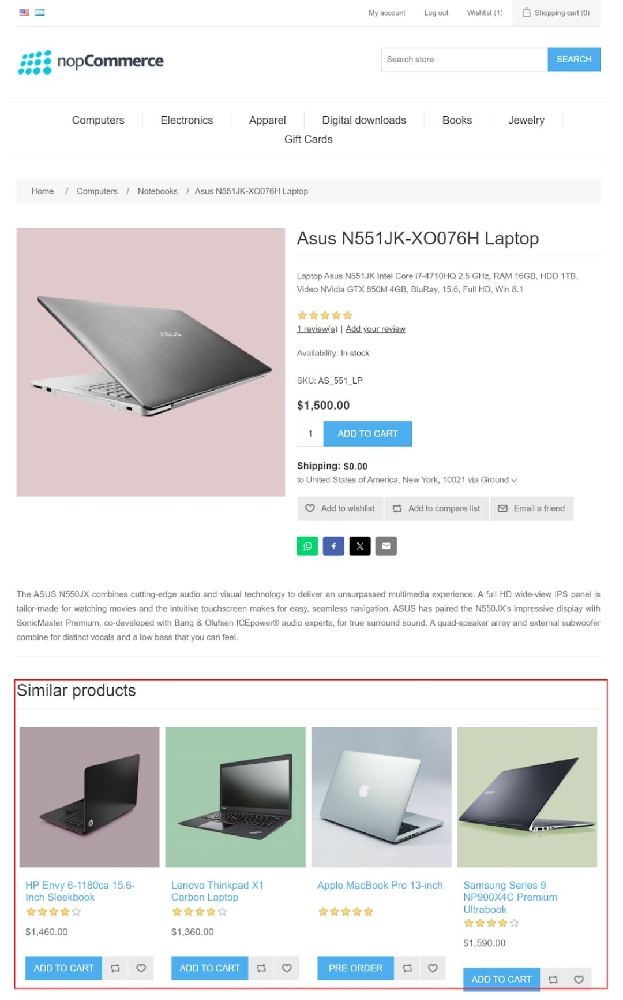
The NopAdvance Product Similarity Engine plugin displays similar products on the product details page to help customers discover related items more easily.
Administrators can configure different matching rules to control how similar products are calculated and displayed in the store. This improves product discovery, enhances the shopping experience, and helps increase cross-selling opportunities.
Installation
- Login to Admin Panel
- Go to Configuration → Local Plugins
- Upload and install the plugin
- Restart the application if required
- Navigate to NopAdvance → Plugins → Product Similarity Engine
All our plugins require you to first install NopAdvance. Core plugin as a prerequisite for its operation. Please refer to the instructions on how to install a plugin while proceeding with the setup.
After successful installation, a new Product Similarity Engine menu will appear in the nopCommerce admin panel under NopAdvance → Plugins. From this menu, administrators can easily access and manage all plugin settings and configure how similar products are displayed in the store, as shown in the image above.
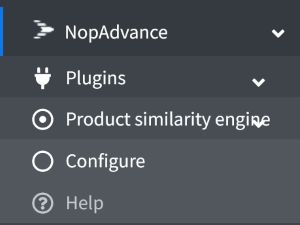
Following are the options available on the navigation menu:
- Configure: This is where you set up the plugin’s settings.
- The Help section provides documentation and step-by-step guidance on how to use the plugin.
Plugin Configuration
The configuration page allows administrators to control similarity settings such as product count, weightage factors, and threshold rules.
Enabled Option
→ This checkbox turns the plugin on or off.
- Checked → plugin is active and working.
- Unchecked → plugin is inactive and won’t do anything.
It’s basically the master switch for the plugin.
Multi-store Configuration
If your nopCommerce site has more than one store, this dropdown lets you choose, which store the plugin settings should affect.
- Select a specific store → settings only apply to that store.
- Select "All stores" → settings apply to every store in your setup.
It’s basically a way to control plugin behavior per store or for all stores at once.

Similar Product Count
Defines how many similar products appear on the product page.

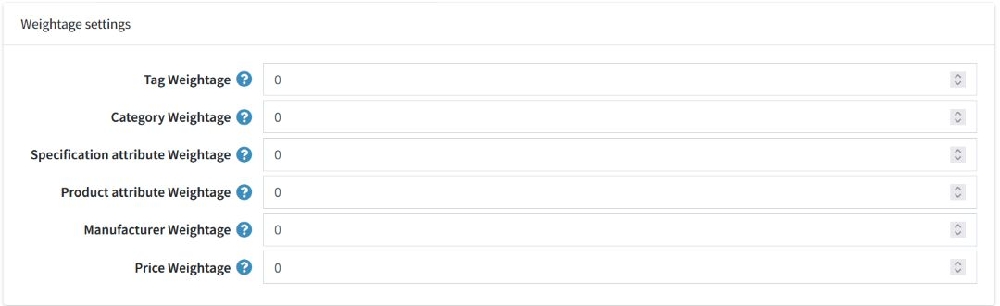
Weightage Settings
Controls the importance of different similarity factors such as tags, category, attributes, manufacturer, and price.
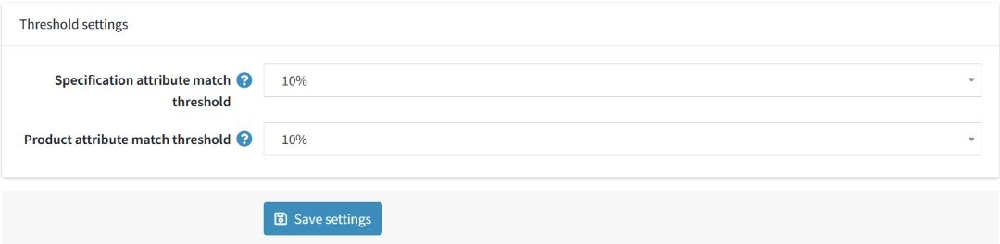
Threshold Settings
Defines the minimum matching percentage required for products to be considered similar.
Storefront Display
When enabled, similar products appear automatically on the product details page.
Benefits
- Better product discovery
- Improved cross-selling
- Enhanced customer experience
- Flexible configuration