
Customer workflow - Advanced Wishlist
Buy Now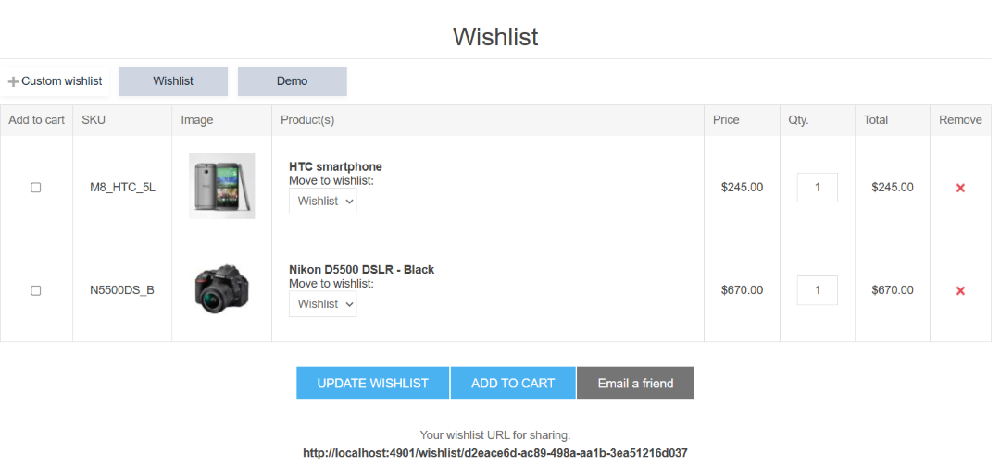
- Custom wishlist creation: Customers can create custom wishlists to organize products based on preferences, projects, or future purchases.
- Product overview at a glance: Wishlist displays key product details including SKU, product image, name, selected attributes (size, color), price, total quantity, and total value.
- Easy quantity management: Customers can update product quantities directly from the wishlist before moving items to the cart.
- One-click add to cart: Selected wishlist items can be added to the shopping cart instantly, reducing friction and speeding up checkout.
- Wishlist updates & item removal: Customers can easily update or remove products from their wishlist.
- Wishlist sharing: Each wishlist generates a unique shareable URL and includes an “Email a friend” option, making it easy to share products with others.
- Fully nopCommerce compatible: The wishlist layout and behavior are fully integrated with the default nopCommerce theme and user experience.
- Redirect to Wishlist ✅: Fully compatible with the default nopCommerce theme and automatically displays the wishlist after a product is added.
Add New Wishlist
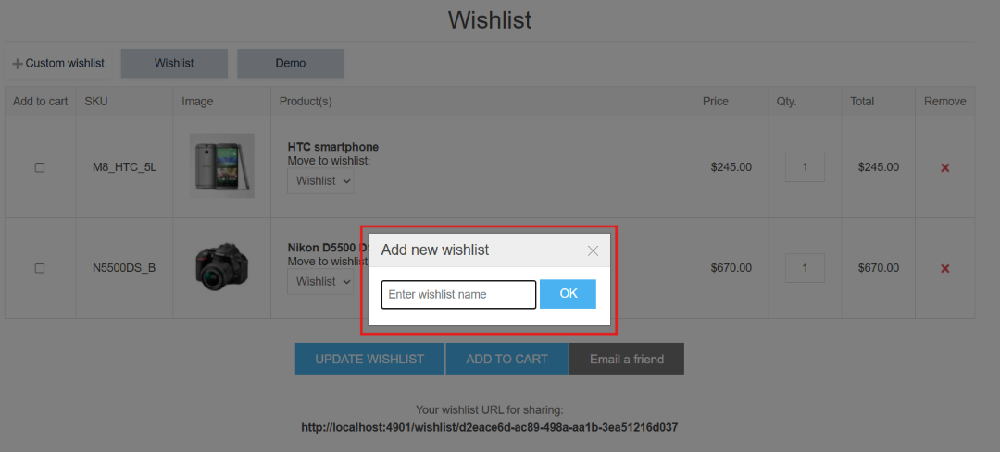
- Custom wishlist creation: Customers can create personalized wishlists by entering a unique name to organize their saved products.
- User-friendly popup interface: The simple, focused popup makes it easy for users to add new wishlists without navigating away from the current page.
- Multi-wishlist support: Allows customers to create and manage multiple wishlists for various purposes, such as by category, gifts, or personal use.
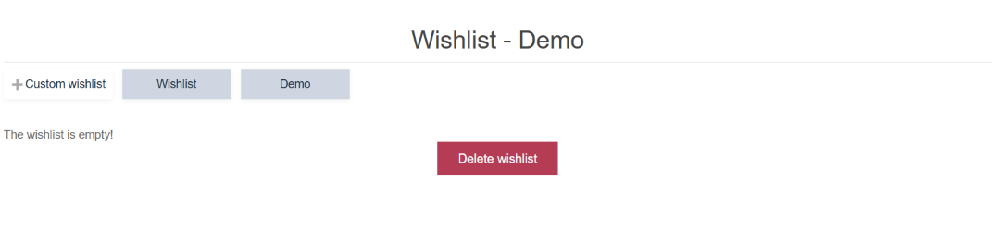
Sends wishlist contents to the specified email address
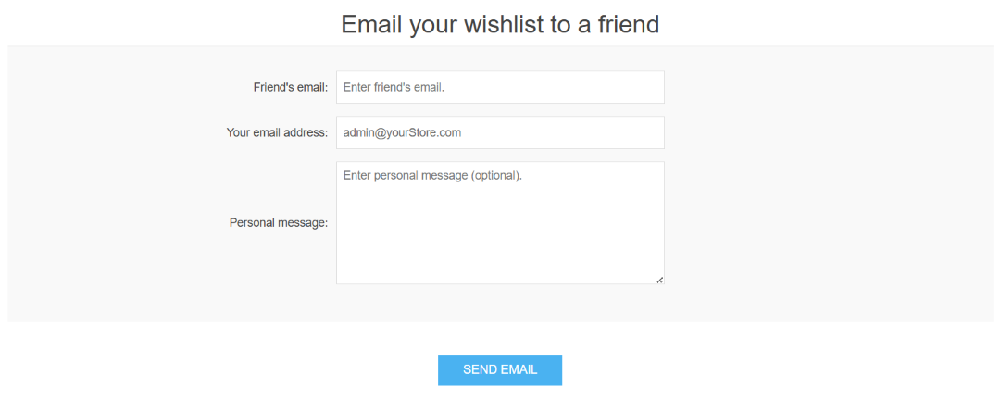
- Friend’s email: Used to send the wishlist details
- Your email address: Auto-filled with the logged-in customer’s email. Read-only or editable depending on configuration
- Personal message: Allows the customer to add a custom message
- Display banner on PDP: If this option is checked, a banner will appear on the Product Details Page (PDP) whenever the product is in the customer’s wishlist.
- Show on homepage below bestseller products: When enabled, a wishlist notification section is displayed below the bestseller products on the homepage.
- Display banner on PDP: If this option is checked, a banner will appear on the Product Details Page (PDP) whenever the product is in the customer’s wishlist.
- Show on homepage below bestseller products: When enabled, a wishlist notification section is displayed below the bestseller products on the homepage.